How to Edit a Scanned PDF Offline
Learn how to edit a scanned PDF offline by running local OCR to convert images to editable text. Secure desktop processing — PDF Agile.
A scanned PDF is just a photograph of a page — the text is locked inside a flat image, so you cannot select, search, or edit it. The only way to truly edit a scanned PDF is to run Optical Character Recognition (OCR) first to turn the picture into real, editable text. This guide explains the free OS options and how to do it securely offline with PDF Agile.
Free General Methods to Resolve This Task
Method 1: Free Built-in OCR and Text Extraction
Modern operating systems include basic OCR you can use for free:
- Windows Snipping Tool Text Actions (Free): Screenshot the scanned page, open it in the Snipping Tool, click Text Actions, and copy the recognized text. It handles one screen region at a time.
- macOS Live Text (Mac): Open the scanned PDF in Preview; Live Text automatically detects text so you can highlight and copy it. It does not make the whole file searchable in batch.
- Google Drive OCR (Free, Browser): Upload the scan to Google Drive and open with Google Docs to extract text — but this uploads your file, a privacy concern for sensitive scans.
For multi-page scans that you need to make fully searchable and editable in batch, PDF Agile's offline OCR engine is the secure professional choice.
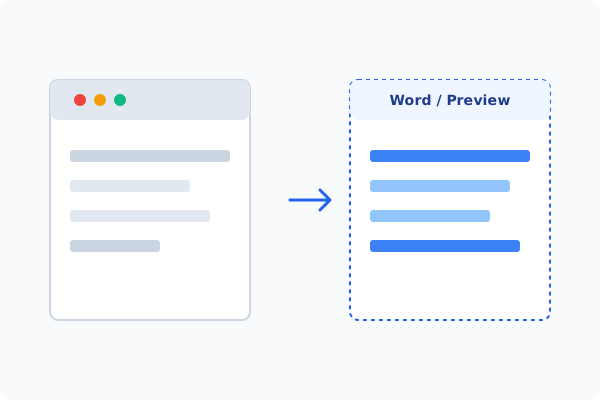
Method 2: How to Process Edit Scanned PDF 100% Offline via PDF Agile
If built-in tools are too manual, convert file layouts, or pose a privacy risk, running a lightweight desktop PDF editor like PDF Agile is the fastest and safest solution on Windows. Follow these steps:
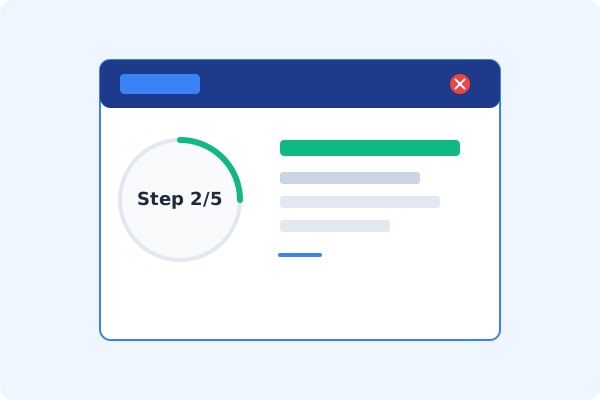
Open PDF Agile & Load the Scanned PDF
Launch PDF Agile and open your scanned document. OCR runs locally, so the scan never leaves your device.
Go to the Convert Tab
Click the Convert tab on the Ribbon menu.
Click OCR
Select OCR to open the recognition wizard.
Choose Language & Output
Pick the document language and choose to output a searchable PDF or fully editable text.
Run OCR, Then Edit & Save
Run OCR locally, then switch to the Edit tab to correct the recognized text, and save with Ctrl+S.
Why Desktop Offline PDF Processing is Superior
For individuals and corporations, desktop-grade utilities protect your data boundaries while maintaining peak rendering speed:
Turns scanned images into editable, searchable text offline
Supports multilingual documents and handwriting recognition
Local OCR engine
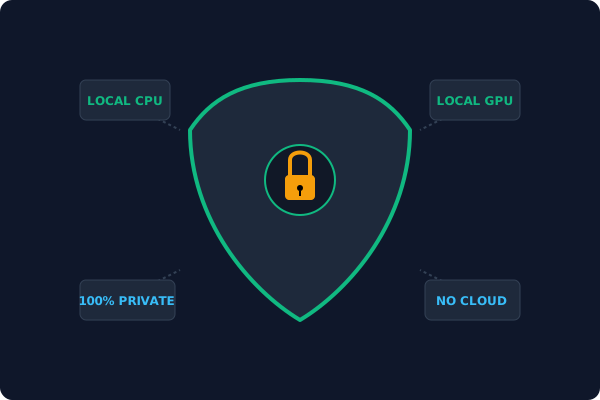
sensitive scans never get uploaded
Offline Local Software vs. Online & Subscription Editors
Before deciding how to handle your document, look at how different solutions stack up against your requirements:
| Features / Risks | Online PDF Editors | Adobe Acrobat | PDF Agile (Offline) |
|---|---|---|---|
| Data Privacy & Safety | ❌ Unsafe (File Uploaded to Cloud) | ⚠️ Average (Cloud Sync Enabled) | ✔ 100% Safe (Processed Locally) |
| File Size & Page Limits | ❌ Strict Limits (Often <20MB) | ✔ Unlimited Pages | ✔ Unlimited Pages (No Cap) |
| Subscription Fees | ⚠️ Free with Ads or Monthly Cap | ❌ Very Expensive ($20+/Month) | ✔ Affordable Lifetime Buyout |
| Offline Performance | ❌ Zero (Requires Internet) | ✔ Slow Setup & Cloud Checks | ✔ Instant Local CPU/GPU Loading |
Contextual PDF Guidelines
Managing complete workflows? After OCR, you can dig into how to convert scanned PDF to text with OCR offline in detail, or how to edit PDF text offline to correct the recognized content.
Frequently Asked Questions & Workarounds
Can I edit a scanned PDF directly?
Not until you run OCR. OCR converts the scanned image into real text that you can then edit in the Edit tab.
Does offline OCR require internet?
No. PDF Agile's OCR neural model is packaged in the desktop app and runs 100% offline.
Will OCR keep the original layout?
Yes. A searchable PDF keeps the original scan image on top with an invisible, editable text layer underneath.
Tired of Expensive Adobe Subscriptions?
Try PDF Agile. Get professional, desktop-grade PDF tools with a lifetime buyout license. 100% offline and secure.