How to Create Hyperlinks in PDF Offline
Create or remove hyperlinks in PDF offline on desktop. Manage all document links securely without upload — PDF Agile.
Adding links to navigate long documents, linking to references, or connecting a table of contents to chapters makes PDFs highly professional and user-friendly. When preparing sensitive internal reports, utilizing an offline desktop editor protects your links and data. In this guide, we review free Microsoft Word methods and explain how to create or delete hyperlinks in PDF offline using the Edit tab in PDF Agile.
Free General Methods to Resolve This Task
Adding clickable links — a table of contents that jumps to chapters, references to web sources, or cross-document navigation — transforms a flat PDF into a professional, easy-to-navigate document. The free methods below mostly require you to build links in the source file before exporting, so they work best when you still have the editable original.
Method 1: Free Source-File Link Setup (Word, Google Docs)
If you have the editable source of your document, you can create links for free and bake them into the exported PDF:
- Microsoft Word Link & Export (Free): Open your draft in Word, highlight any text, right-click and choose Link, then enter a web URL, an email address, or select Place in This Document to link to a heading or bookmark. When finished, go to File > Save As > PDF and enable Document structure tags for accessibility so the links carry into the PDF. This is the most reliable free route, but it only works if you still have the Word source.
- Google Docs Hyperlinks (Free): In a free Google Docs document, select text, press Ctrl+K, paste your URL or pick a heading/bookmark, then use File > Download > PDF Document. Links are preserved in the exported PDF at no cost.
- Browser "Auto-Link" Limitation: Note that simply opening a flat PDF in Edge or Chrome will sometimes auto-detect raw URLs and make them clickable on screen, but it does not save those links into the file — reopen it elsewhere and they are gone.
The shared limitation of every free option is that you must own the editable source and re-export the whole document. To add or strip hyperlinks directly inside a finished, flat PDF — with no source file and no full re-export — use the dedicated Link tool in PDF Agile.
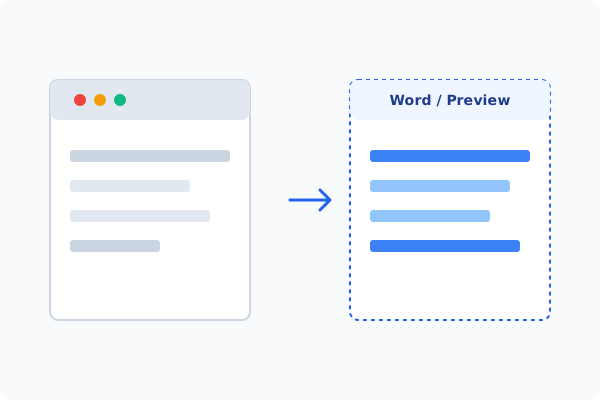
Method 2: How to Process Create Hyperlink 100% Offline via PDF Agile
If built-in tools are too manual, convert file layouts, or pose a privacy risk, running a lightweight desktop PDF editor like PDF Agile is the fastest and safest solution on Windows. Follow these steps:
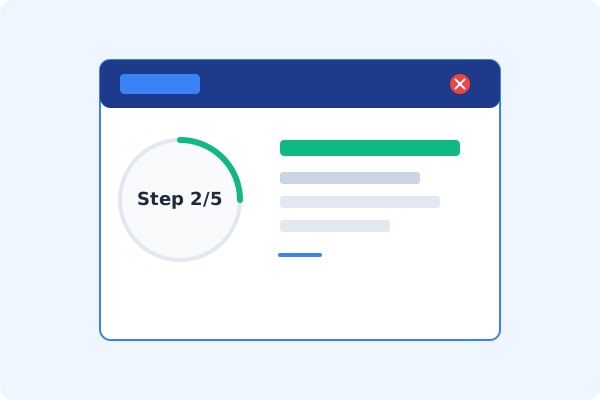
Open PDF Agile and Load Document
Launch the desktop app and open your PDF file. The local compiler runs completely offline.
Go to the Edit Tab
Click the Edit tab on the Ribbon menu to access document structure tools.
Click Link on the Ribbon
Select the Link button. Choose Create Link to draw a clickable area on the page.
Set Link Destination
In the link dialog, configure the action: jump to a specific page number, open a web URL, or launch an external file.
Apply and Save Locally
Confirm the placement, and press Ctrl+S to save the hyperlinked PDF directly to your local drive.
Why Desktop Offline PDF Processing is Superior
For individuals and corporations, desktop-grade utilities protect your data boundaries while maintaining peak rendering speed:
Create clickable page jumps, web URLs, or external file links easily
Strip out all active hyperlinks in a single click using Remove All Links
100% offline processing keeps confidential links and URLs secure

Offline Local Software vs. Online & Subscription Editors
Before deciding how to handle your document, look at how different solutions stack up against your requirements:
| Features / Risks | Online PDF Editors | Adobe Acrobat | PDF Agile (Offline) |
|---|---|---|---|
| Data Privacy & Safety | ❌ Unsafe (File Uploaded to Cloud) | ⚠️ Average (Cloud Sync Enabled) | ✔ 100% Safe (Processed Locally) |
| File Size & Page Limits | ❌ Strict Limits (Often <20MB) | ✔ Unlimited Pages | ✔ Unlimited Pages (No Cap) |
| Subscription Fees | ⚠️ Free with Ads or Monthly Cap | ❌ Very Expensive ($20+/Month) | ✔ Affordable Lifetime Buyout |
| Offline Performance | ❌ Zero (Requires Internet) | ✔ Slow Setup & Cloud Checks | ✔ Instant Local CPU/GPU Loading |
Contextual PDF Guidelines
Managing complete workflows? Once your links are placed, you can insert page numbers in PDF offline to verify your table of contents jumps, or add a watermark to PDF offline to mark the linked guide as a draft.
Frequently Asked Questions & Workarounds
Can I link a table of contents to chapters?
Yes. Use the Create Link tool, draw a box over your table of contents line, and set the destination action to jump to your chapter's page number.
How do I delete all active links from a downloaded PDF?
In PDF Agile, click Edit > Link > Remove All Links. The software will strip all hyperlink triggers instantly, which is excellent for safety before sharing.
Does clicking a link require internet inside the app?
Page jumps work fully offline. Web URL links will launch your default browser, which requires an active internet connection to load the external web page.
Tired of Expensive Adobe Subscriptions?
Try PDF Agile. Get professional, desktop-grade PDF tools with a lifetime buyout license. 100% offline and secure.