How to Insert a Blank Page into PDF Offline
Insert blank pages, external PDFs, or images into your PDF offline on desktop. Fast and secure with PDF Agile.

Adding blank pages for separators, inserting appendix chapters, or placing missing diagrams into an existing PDF is a standard formatting task. Doing this on your desktop ensures high speed and prevents corporate data from leaking online. In this guide, we discuss free built-in OS methods and explain how to insert a blank page, external PDF, or image page offline with PDF Agile.
Free General Methods to Resolve This Task
Method 1: Free Browser and Virtual Printer Combos
If you don't own a desktop editor, you can insert pages by combining documents using free system utilities:
- macOS Preview (Mac): Open your main PDF in Preview. Show the sidebar thumbnails (View > Thumbnails). Open the second PDF or image in another window. Drag the thumbnail of the second PDF or image directly into the sidebar of the first PDF to insert it at any position. Save the file.
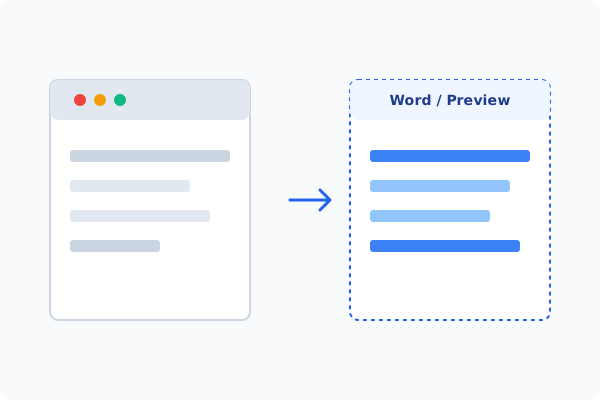
- Windows Web Browser and Word Method: Open Microsoft Word, insert a page break to make a blank document, and save as 'blank.pdf'. Open both your main PDF and 'blank.pdf' in a free browser extension or virtual printing tool, and print them together using custom page order to append them.
If you want a single, streamlined program to insert blank pages, external PDFs, or images, the Page tab in PDF Agile is the ideal solution.
Method 2: How to Process Insert Blank Page 100% Offline via PDF Agile
If built-in tools are too manual, convert file layouts, or pose a privacy risk, running a lightweight desktop PDF editor like PDF Agile is the fastest and safest solution on Windows. Follow these steps:
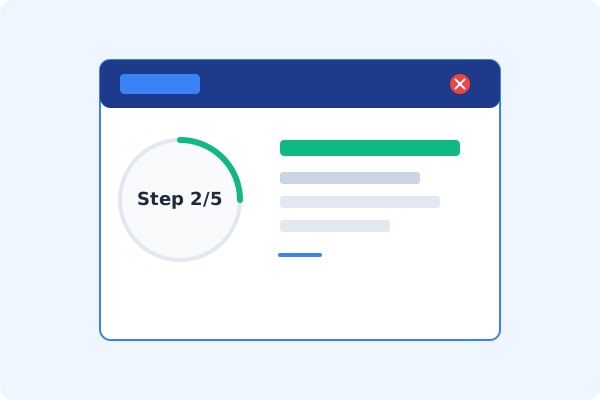
Launch PDF Agile and Open File
Start PDF Agile on your computer. All rendering is processed locally on your GPU for maximum speed.
Select the Page Tab
On the Ribbon menu, click the Page tab to view page assembly features.
Click Insert on the Ribbon
Click the Insert button under the Page tab to reveal your insertion choices.
Choose Blank Page, PDF, or Image
Select Blank Page to add space, or choose to insert an external PDF file or a high-resolution image at any page number.
Save Locally with Ctrl+S
Confirm the changes in the thumbnail preview panel, and press Ctrl+S to save the updated PDF locally.
Why Desktop Offline PDF Processing is Superior
For individuals and corporations, desktop-grade utilities protect your data boundaries while maintaining peak rendering speed:
Insert empty pages, secondary PDFs, or graphics seamlessly
Adjust insertion positions instantly using the sidebar thumbnails
100% offline desktop processing protects files from cloud risks

Offline Local Software vs. Online & Subscription Editors
Before deciding how to handle your document, look at how different solutions stack up against your requirements:
| Features / Risks | Online PDF Editors | Adobe Acrobat | PDF Agile (Offline) |
|---|---|---|---|
| Data Privacy & Safety | ❌ Unsafe (File Uploaded to Cloud) | ⚠️ Average (Cloud Sync Enabled) | ✔ 100% Safe (Processed Locally) |
| File Size & Page Limits | ❌ Strict Limits (Often <20MB) | ✔ Unlimited Pages | ✔ Unlimited Pages (No Cap) |
| Subscription Fees | ⚠️ Free with Ads or Monthly Cap | ❌ Very Expensive ($20+/Month) | ✔ Affordable Lifetime Buyout |
| Offline Performance | ❌ Zero (Requires Internet) | ✔ Slow Setup & Cloud Checks | ✔ Instant Local CPU/GPU Loading |
Contextual PDF Guidelines
Managing complete workflows? Once your pages are placed, you can insert page numbers in PDF offline to re-align the document's headers, or use our tool to split PDF pages offline to trim off any excess blank sheets.
Frequently Asked Questions & Workarounds
Can I insert a JPG image as a PDF page offline?
Yes. PDF Agile's Insert tool automatically converts image formats (JPG, PNG, WebP) into standard vector-wrapped PDF pages during insertion.
How do I add a blank page for printer backing?
Simply click Page > Insert > Blank Page, set the count to 1, and specify whether to insert it before or after the selected page.
Is there a risk of layout break when inserting pages?
No. Inserting pages offline only updates the page tree structure of the PDF without re-rendering or modifying existing page layers.
Tired of Expensive Adobe Subscriptions?
Try PDF Agile. Get professional, desktop-grade PDF tools with a lifetime buyout license. 100% offline and secure.