How to Edit Images Inside a PDF Offline
Use cutout, filters, magic erase, and AI upscale to edit images inside PDF offline on desktop. Secure tool by PDF Agile.
When preparing sales catalogs, guides, or manuals, you often need to adjust illustrations, backgrounds, or low-resolution screenshots inside the PDF. Doing this inline avoids messy export-edit-reimport cycles. This guide reviews manual screenshot workarounds and explains how to edit images inside PDF offline with the AI-powered Format tab in PDF Agile.
Free General Methods to Resolve This Task
Editing an image that is already embedded inside a PDF is one of the trickiest document tasks, because neither Windows nor macOS provides a native tool that lets you click an image inside a PDF and edit it in place. The free workarounds below all rely on a "export, edit externally, then re-import" cycle, which is slow and frequently breaks your paragraph layout. Understanding them, however, helps you decide when a dedicated desktop editor is worth it.
Method 1: Windows & macOS Free Screenshot-and-Replace Workarounds
If you do not own an inline PDF image editor, you can approximate the result for free using the screenshot, paint, and re-import tools built into your operating system:
- Windows Snipping Tool + Paint (Free): Press Win + Shift + S to capture the image region from your PDF. Open Microsoft Paint or the free Paint 3D, paste the capture (Ctrl+V), and use the eraser, crop, color fill, or rotate tools to edit it. Save the edited graphic as a PNG. You will then need a separate PDF editor to delete the original image and insert your new PNG at the same coordinates.
- macOS Preview Image Extraction (Mac-only): Open the PDF in Preview, use the rectangular selection marquee to select the image, copy it (Cmd+C), and paste it into the free Preview image canvas or Photos app. There you can crop, adjust exposure, apply built-in filters, or use Instant Alpha to roughly remove a background. Save and then re-insert the edited image into your PDF.
- Free GIMP for Advanced Edits: For background removal or color correction beyond what Paint offers, the free, open-source GIMP editor can handle cutouts and filters. Again, the limitation is that GIMP cannot open the image "inside" the PDF — you must extract, edit, and re-import manually.
The common drawback of every free method above is the disruptive export-edit-reimport cycle: it is tedious, it often shifts surrounding text, and image alignment rarely matches the original pixel-for-pixel. To cut out backgrounds, apply filters, magic-erase objects, and AI-upscale images directly in place inside the PDF, the dedicated Format context tools in PDF Agile remove all of this friction.
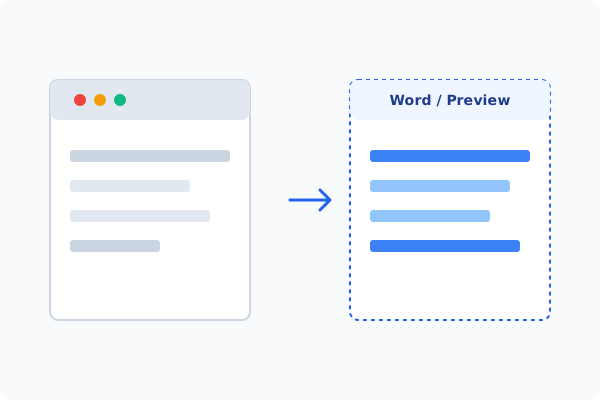
Method 2: How to Process Edit Image (Cutout) 100% Offline via PDF Agile
If built-in tools are too manual, convert file layouts, or pose a privacy risk, running a lightweight desktop PDF editor like PDF Agile is the fastest and safest solution on Windows. Follow these steps:
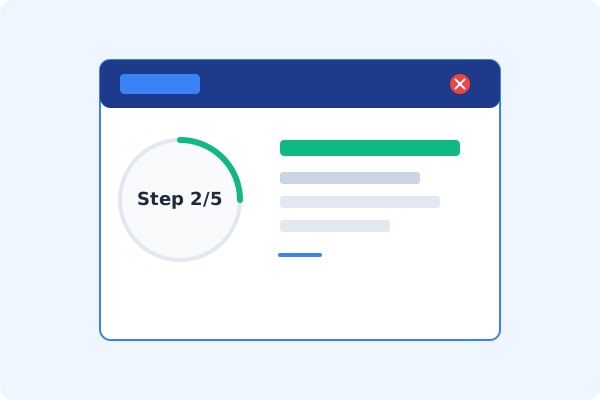
Open PDF Agile and Load PDF
Launch PDF Agile and open the document containing images you want to edit.
Select the Image
Click the Edit Content tool, then click directly on the image you wish to edit.
Reveal the Format Context Menu
A dedicated Format context tab will appear automatically on the Ribbon menu.
Use Cutout, Filter, Magic Erase, or AI Upscale
Choose Cutout to strip the background, Magic Erase to delete items, or AI Upscale to increase image resolution.
Save Locally with Ctrl+S
Confirm the in-place image enhancements and press Ctrl+S to save the document.
Why Desktop Offline PDF Processing is Superior
For individuals and corporations, desktop-grade utilities protect your data boundaries while maintaining peak rendering speed:
Cut out backgrounds and magic-erase unwanted objects in-place
Increase clarity and resolution of low-quality pictures with AI Upscale
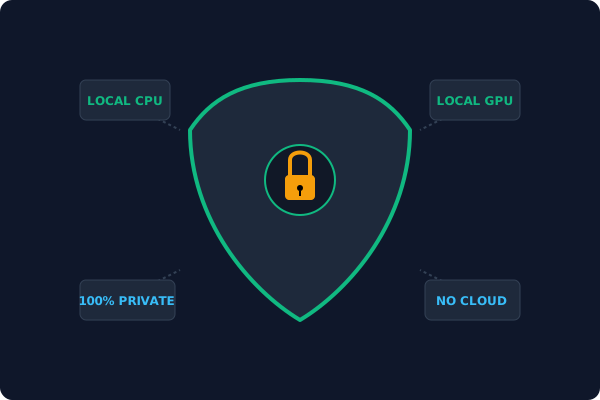
100% offline desktop processing keeps company photos and layouts secure
Offline Local Software vs. Online & Subscription Editors
Before deciding how to handle your document, look at how different solutions stack up against your requirements:
| Features / Risks | Online PDF Editors | Adobe Acrobat | PDF Agile (Offline) |
|---|---|---|---|
| Data Privacy & Safety | ❌ Unsafe (File Uploaded to Cloud) | ⚠️ Average (Cloud Sync Enabled) | ✔ 100% Safe (Processed Locally) |
| File Size & Page Limits | ❌ Strict Limits (Often <20MB) | ✔ Unlimited Pages | ✔ Unlimited Pages (No Cap) |
| Subscription Fees | ⚠️ Free with Ads or Monthly Cap | ❌ Very Expensive ($20+/Month) | ✔ Affordable Lifetime Buyout |
| Offline Performance | ❌ Zero (Requires Internet) | ✔ Slow Setup & Cloud Checks | ✔ Instant Local CPU/GPU Loading |
Contextual PDF Guidelines
Managing complete workflows? To erase whole pages or graphics, you can erase PDF content offline, or add shapes to PDF offline to annotate the modified images.
Frequently Asked Questions & Workarounds
Can I remove an image background directly inside the PDF?
Yes. PDF Agile's Cutout tool automatically segments and removes background layers from inline images offline.
What does AI Upscale do to inline images?
AI Upscale reconstructs fine details, turning pixelated, low-resolution images into crisp graphics suitable for high-quality printing.
Does image editing require internet?
No. Background segmentation and super-resolution AI algorithms run entirely on your local machine, fully offline.
Tired of Expensive Adobe Subscriptions?
Try PDF Agile. Get professional, desktop-grade PDF tools with a lifetime buyout license. 100% offline and secure.