How to Change PDF Reading Mode and Background Offline
Switch to read mode, full-screen, or night/eye-protection background for comfortable PDF reading offline — PDF Agile.
Reading long academic papers, corporate briefs, or legal filings on-screen causes significant eye strain. Tailoring your reader's interface for comfortable reading makes a massive difference during long study sessions. This tutorial explores free browser reading workarounds and demonstrates how to change your PDF reading mode and background offline using the View tab in PDF Agile.
Free General Methods to Resolve This Task
Method 1: Web Browser Free PDF Viewing Modes
Most modern web browsers feature built-in PDF viewers that offer basic viewing adjustments for comfortable reading:
- Microsoft Edge PDF Reader (Windows & Mac): Edge features a highly capable reader. Open any PDF in Edge, click the Page View button to switch between single and double-page views. Edge also includes an Eye-protection/Read Aloud engine and basic dark mode workarounds through browser themes.
- Google Chrome View Options: Chrome lets you fit pages to width, rotate sheets, and select two-page presentation modes. However, it lacks native eye-protection background filters.
For advanced, offline desktop viewing with dedicated night and eye-protection backgrounds, utilizing the View features in PDF Agile is recommended.
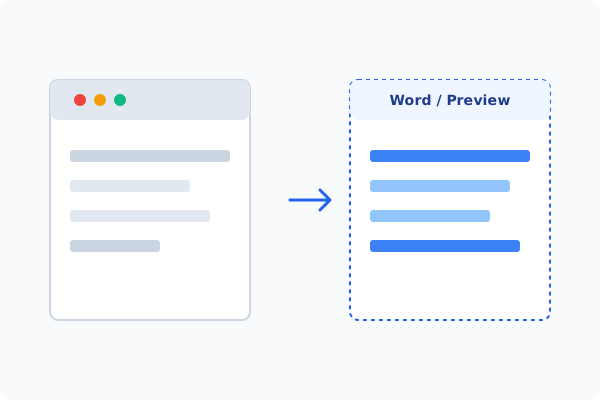
Method 2: How to Process Reading Mode 100% Offline via PDF Agile
If built-in tools are too manual, convert file layouts, or pose a privacy risk, running a lightweight desktop PDF editor like PDF Agile is the fastest and safest solution on Windows. Follow these steps:
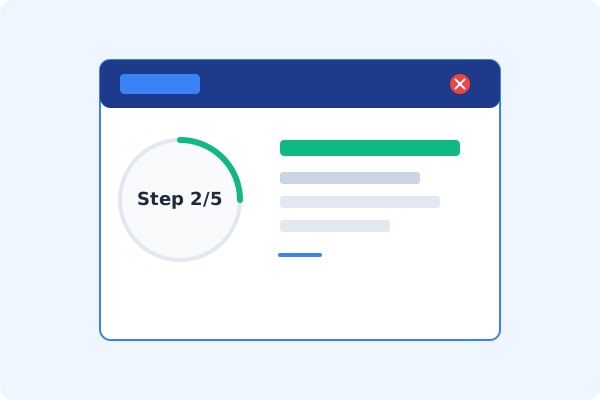
Open PDF Agile and Load Document
Launch the desktop app and open your PDF. The software runs completely offline on your local machine.
Go to the View Tab
Click the View tab on the Ribbon menu to access presentation and reading controls.
Choose Read Mode or Full-Screen
Click Read Mode to hide menus and focus on text, or Full-Screen to maximize page space.
Adjust Background to Night or Eye-Protection
Click Background. Select Night (dark theme) or Eye-protection (soothing light green) to reduce screen glare.
Enjoy Comfortable Offline Reading
All viewing adjustments are applied instantly in real-time with zero system lag.
Why Desktop Offline PDF Processing is Superior
For individuals and corporations, desktop-grade utilities protect your data boundaries while maintaining peak rendering speed:
Comfortable dark-themed Night mode and soothing Eye-protection green filters
Distraction-free Read Mode hides toolbars to help you focus
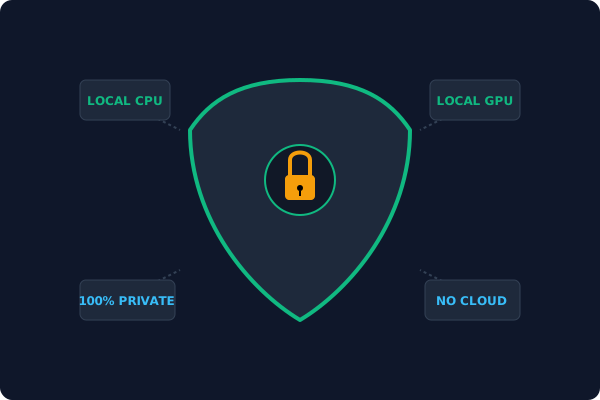
100% offline desktop application
read large files smoothly
Offline Local Software vs. Online & Subscription Editors
Before deciding how to handle your document, look at how different solutions stack up against your requirements:
| Features / Risks | Online PDF Editors | Adobe Acrobat | PDF Agile (Offline) |
|---|---|---|---|
| Data Privacy & Safety | ❌ Unsafe (File Uploaded to Cloud) | ⚠️ Average (Cloud Sync Enabled) | ✔ 100% Safe (Processed Locally) |
| File Size & Page Limits | ❌ Strict Limits (Often <20MB) | ✔ Unlimited Pages | ✔ Unlimited Pages (No Cap) |
| Subscription Fees | ⚠️ Free with Ads or Monthly Cap | ❌ Very Expensive ($20+/Month) | ✔ Affordable Lifetime Buyout |
| Offline Performance | ❌ Zero (Requires Internet) | ✔ Slow Setup & Cloud Checks | ✔ Instant Local CPU/GPU Loading |
Contextual PDF Guidelines
Managing complete workflows? To review visual updates between two revisions, you can compare two PDF files offline, or use our extraction tools to extract tables from PDF to Excel offline to pull out the data you are studying.
Frequently Asked Questions & Workarounds
Does changing the background color modify the actual PDF?
No. Reading backgrounds (like Night or Eye-protection) are viewer filters. The original PDF files remain untouched, preserving their default formatting when shared.
Can I view two pages side-by-side?
Yes. In the View tab, select Page View > Two Pages to display the document like an open book, ideal for manuals and magazines.
Is this reader offline?
Yes, the full reading suite operates locally, allowing you to study large reports without an internet connection.
Tired of Expensive Adobe Subscriptions?
Try PDF Agile. Get professional, desktop-grade PDF tools with a lifetime buyout license. 100% offline and secure.