How to Edit a PDF Offline — Complete Step-by-Step Guide
Learn how to edit PDF text, images, and pages offline on desktop. Compare free built-in tools with a secure local PDF editor — PDF Agile.
Editing a PDF is one of the most common document tasks, yet PDFs are designed to be a final, fixed format — which makes them notoriously hard to change. Whether you need to fix a typo, swap an image, or reorganize pages, this guide walks you through every free built-in option on Windows and macOS, then shows you how a dedicated offline desktop editor like PDF Agile handles the heavy lifting without uploading your file anywhere.
Free General Methods to Resolve This Task
Method 1: Windows & macOS Free Built-in PDF Editing Options
Before installing anything, you can make basic edits using tools you already own:
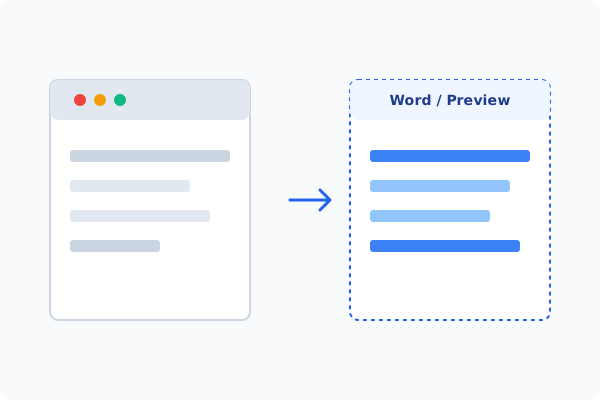
- Microsoft Word (Windows & Mac): Right-click any PDF and choose Open With > Microsoft Word. Word converts the PDF into an editable document so you can change text, then re-export with File > Save As > PDF. Complex layouts, tables, and embedded fonts may shift during conversion.
- macOS Preview (Mac-only): Preview lets you add text boxes, signatures, shapes, and annotations, and reorder or delete pages via the thumbnail sidebar. It cannot, however, edit existing body text directly.
- Microsoft Edge (Windows & Mac): Edge's built-in PDF viewer supports drawing, highlighting, and adding text notes — handy for quick markups but not true content editing.
These free methods cover light edits, but for changing existing text with font matching, editing inline images, or batch operations, a dedicated desktop editor like PDF Agile is the most reliable offline solution.
Method 2: How to Process How to Edit PDF 100% Offline via PDF Agile
If built-in tools are too manual, convert file layouts, or pose a privacy risk, running a lightweight desktop PDF editor like PDF Agile is the fastest and safest solution on Windows. Follow these steps:
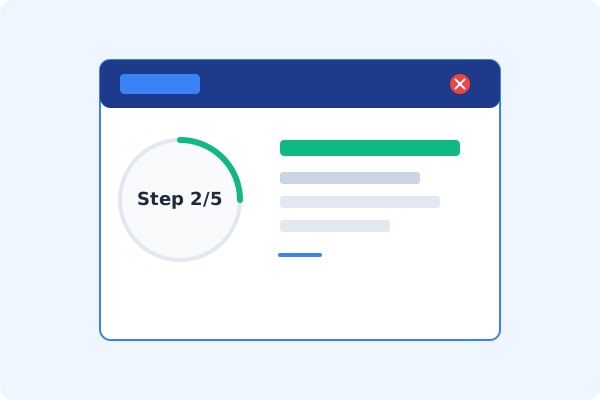
Launch PDF Agile & Open Your File
Start PDF Agile on your desktop and open the PDF. Everything is processed locally, so your file never leaves your computer.
Click the Edit Tab
On the top Ribbon menu, click the Edit tab to switch from reading mode into full editing mode.
Select Edit Content
Click Edit Content. PDF Agile parses the document into editable text blocks and selectable image objects.
Make Your Changes
Click into any paragraph to retype text with automatic font matching, drag images to reposition them, or use the Page tab to reorder pages.
Save Locally with Ctrl+S
Press Ctrl+S to save the edited PDF directly to your local drive — no upload, no watermark, no signup.
Why Desktop Offline PDF Processing is Superior
For individuals and corporations, desktop-grade utilities protect your data boundaries while maintaining peak rendering speed:
Edit text, images, and pages in one unified offline workspace
Automatic font matching prevents layout breaks
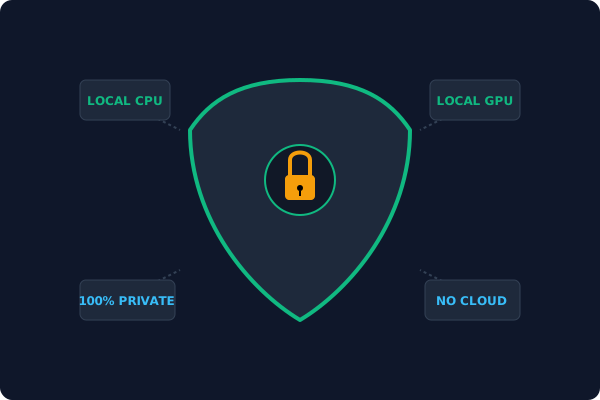
100% local processing keeps confidential documents private
Offline Local Software vs. Online & Subscription Editors
Before deciding how to handle your document, look at how different solutions stack up against your requirements:
| Features / Risks | Online PDF Editors | Adobe Acrobat | PDF Agile (Offline) |
|---|---|---|---|
| Data Privacy & Safety | ❌ Unsafe (File Uploaded to Cloud) | ⚠️ Average (Cloud Sync Enabled) | ✔ 100% Safe (Processed Locally) |
| File Size & Page Limits | ❌ Strict Limits (Often <20MB) | ✔ Unlimited Pages | ✔ Unlimited Pages (No Cap) |
| Subscription Fees | ⚠️ Free with Ads or Monthly Cap | ❌ Very Expensive ($20+/Month) | ✔ Affordable Lifetime Buyout |
| Offline Performance | ❌ Zero (Requires Internet) | ✔ Slow Setup & Cloud Checks | ✔ Instant Local CPU/GPU Loading |
Contextual PDF Guidelines
Managing complete workflows? Once you are comfortable with the basics, you can dive deeper into how to edit PDF text offline keeping the same font, or learn to crop and split PDF pages offline to reorganize your document.
Frequently Asked Questions & Workarounds
Can I edit a PDF for free?
Yes. You can use Microsoft Word or macOS Preview for basic edits, or PDF Agile's offline desktop editor for advanced text and image editing without subscription fees.
Why does my PDF break when I edit it in Word?
Word rebuilds the layout from scratch during conversion, which can shift tables, columns, and fonts. Editing directly inside PDF Agile preserves the original layout.
Is it safe to edit confidential PDFs online?
No. Online editors upload your file to a server. For sensitive documents, an offline desktop editor that processes everything locally is far safer.
Tired of Expensive Adobe Subscriptions?
Try PDF Agile. Get professional, desktop-grade PDF tools with a lifetime buyout license. 100% offline and secure.