How to Redact Sensitive Text in PDF Offline
Mark and apply redaction to sensitive text, images, and pages in PDF offline on desktop. Permanent secure removal — PDF Agile.

When sharing contracts, medical histories, or court records, hiding private data is a strict legal requirement. Simply covering text with black marker blocks is insecure; computer crawlers can still index the text underneath. This guide covers manual cover workarounds and details how to securely redact sensitive text in PDF offline using the specialized Protect tab in PDF Agile.
Free General Methods to Resolve This Task
Properly hiding private data in a PDF is a legal and compliance requirement, not just a visual edit. The single most important thing to understand is the difference between covering up text and redacting it. The free methods below will visually hide content, but — critically — they do not remove the underlying data, which exposes you to serious data-leak risk.
Method 1: Free Cover-Up Workarounds (and Why They Are Dangerous)
Many users try to redact documents for free using built-in operating system annotation tools. These are fine for casual markup, but they are unsafe for true redaction:
- macOS Preview Black Box (Insecure): In Preview, you can open the Markup Toolbar, draw a Rectangle, and set the fill color to solid black to cover names or numbers. The problem: the original text layer remains fully intact underneath. Anyone can select, copy, or run a text-search to reveal exactly what you tried to hide.
- Microsoft Edge / Word Highlight (Insecure): Drawing a black pen stroke in Edge, or applying black highlight in Word before exporting to PDF, looks like redaction but is purely cosmetic. The characters are still embedded in the file stream and are extractable by any crawler or copy-paste.
- The "Flatten by Printing" Trick (Partial): One genuinely free way to destroy the underlying text is to add black boxes, then use Print to PDF (Microsoft Print to PDF on Windows, or Save as PDF on Mac) to flatten the page into a new file. This can remove the text behind the box — but it also strips all other selectable text and bookmarks, degrading the whole document, and it offers no search-and-redact or per-page control.
Because regulatory redaction (GDPR, HIPAA, legal discovery) requires the data to be permanently destroyed rather than merely hidden, the specialized Redact tools in PDF Agile — with Mark for Redaction, Search & Redact, and a true Apply Redaction step — are the safe, professional choice.
Method 2: How to Process Redact Text 100% Offline via PDF Agile
If built-in tools are too manual, convert file layouts, or pose a privacy risk, running a lightweight desktop PDF editor like PDF Agile is the fastest and safest solution on Windows. Follow these steps:
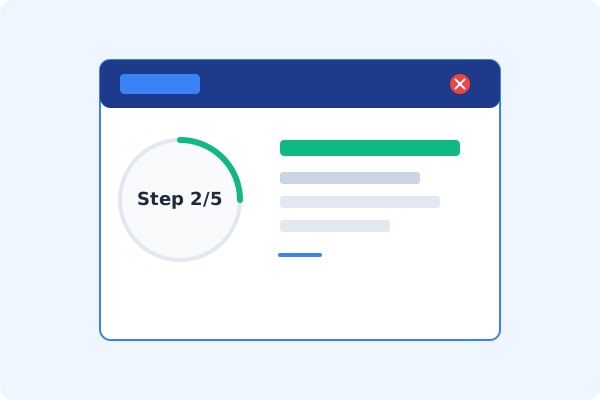
Open PDF Agile and Load Document
Start PDF Agile on your Windows desktop. All redactions are processed locally, ensuring full compliance.
Go to the Protect Tab
Click the Protect tab on the Ribbon menu to view security features.
Select Redact on the Ribbon
Click Redact. Choose Mark for Redaction, or Search & Redact to automate matching.
Mark Text, Images, or Pages
Highlight the text or draw boxes over graphics you wish to redact. The marked areas are highlighted in red outline.
Click Apply Redaction and Save
Click Apply Redaction. The software permanently purges the marked data from the file stream, replaces it with solid black blocks, and saves the file locally.
Why Desktop Offline PDF Processing is Superior
For individuals and corporations, desktop-grade utilities protect your data boundaries while maintaining peak rendering speed:
Permanently delete text, graphics, and page metadata from the file stream
Search and redact all matching terms instantly across multi-page documents
100% offline compliance processing keeps confidential records secure

Offline Local Software vs. Online & Subscription Editors
Before deciding how to handle your document, look at how different solutions stack up against your requirements:
| Features / Risks | Online PDF Editors | Adobe Acrobat | PDF Agile (Offline) |
|---|---|---|---|
| Data Privacy & Safety | ❌ Unsafe (File Uploaded to Cloud) | ⚠️ Average (Cloud Sync Enabled) | ✔ 100% Safe (Processed Locally) |
| File Size & Page Limits | ❌ Strict Limits (Often <20MB) | ✔ Unlimited Pages | ✔ Unlimited Pages (No Cap) |
| Subscription Fees | ⚠️ Free with Ads or Monthly Cap | ❌ Very Expensive ($20+/Month) | ✔ Affordable Lifetime Buyout |
| Offline Performance | ❌ Zero (Requires Internet) | ✔ Slow Setup & Cloud Checks | ✔ Instant Local CPU/GPU Loading |
Contextual PDF Guidelines
Managing complete workflows? After redacting your document, you can safely add a digital signature to PDF offline to validate the finalized draft, or add a watermark to PDF offline to label it as a cleared release.
Frequently Asked Questions & Workarounds
Is redacted text recoverable?
No. Once you click Apply Redaction and save, the selected data is permanently erased from the document's file structure and cannot be recovered.
Can I redact scanned text?
Yes. If the file is scanned, PDF Agile automatically runs OCR behind the scenes to locate and permanently purge the characters.
Is PDF Agile's redaction tool offline?
Yes, the redaction and string-purging engine runs locally on your desktop, requiring no cloud account.
Tired of Expensive Adobe Subscriptions?
Try PDF Agile. Get professional, desktop-grade PDF tools with a lifetime buyout license. 100% offline and secure.