How to Add Shapes and Free Drawing to PDF Offline
Draw shapes (line, arrow, rectangle, oval) or free-hand annotations on PDF offline on desktop. Secure tool by PDF Agile.

Reviewing blueprints, grading homework, or marking up architectural drafts requires robust annotation tools. If you are working with proprietary intellectual property, cloud-based annotation tools are highly insecure. In this guide, we look at free built-in OS tools and explain how to add shapes and free-hand drawings to PDF offline with PDF Agile's Comment tab.
Free General Methods to Resolve This Task
Marking up a PDF — drawing arrows on a blueprint, circling a figure, or sketching free-hand notes on a draft — is one of the most common review tasks. Both Windows and macOS ship with surprisingly capable free annotation tools, so it pays to know exactly what each can and cannot do before deciding whether a dedicated editor is warranted.
Method 1: Windows & macOS Built-in Free Annotation Tools
Both major desktop operating systems include free, pre-installed utilities for marking up and drawing on PDF files:
- macOS Preview Markup (Free on Mac): Preview has a comprehensive markup engine. Open the PDF and click the Show Markup Toolbar button. The Shapes tool adds rectangles, circles, lines, and arrows, while the Sketch and Draw pens handle free-hand markup — Sketch even auto-cleans rough shapes into neat ones. You can fully customize border color, fill, and line thickness, then save the annotations directly into the PDF.
- Windows Microsoft Edge Draw Pen (Windows): Open the PDF in Microsoft Edge and select the built-in Draw pen, which offers adjustable colors and stroke thickness — ideal for quick free-hand grading, signing, or circling. Edge also has a Highlight tool. Its limitation is that it has no true vector shape tool, so straight lines and perfect rectangles are hard to draw by hand.
- Windows Snipping Tool + Paint (Workaround): Because Windows lacks a native shape tool for PDFs, you can capture a page region with the Snipping Tool (Win + Shift + S), paste it into the free Paint app, add precise lines, arrows, rectangles, and text, then save and re-insert it as an image. This works but flattens the page into a picture and disrupts selectable text.
The free tools are great for casual markup, but they lack editable annotation layers, scaled drawing, and consistent cross-platform shapes. For a unified, professional editor where every shape and free-hand stroke stays as an editable, standard-compliant layer, the Comment tools in PDF Agile are the industry standard.
Method 2: How to Process Shapes & Free Drawing 100% Offline via PDF Agile
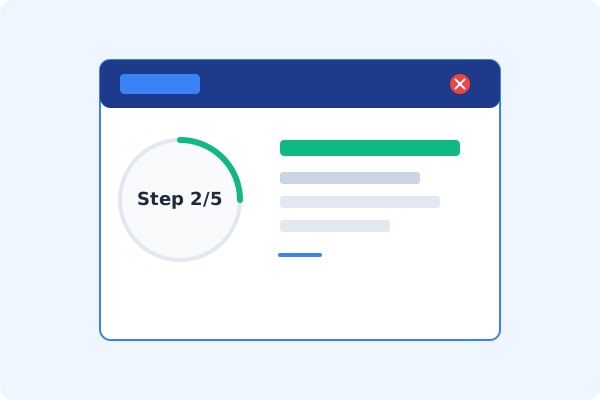
If built-in tools are too manual, convert file layouts, or pose a privacy risk, running a lightweight desktop PDF editor like PDF Agile is the fastest and safest solution on Windows. Follow these steps:
Launch PDF Agile & Load PDF
Start the desktop program and open your PDF file. The local rendering engine loads large blueprints instantly.
Open the Comment Tab
Click the Comment tab on the Ribbon menu to view the full annotation toolkit.
Pick a Shape or Free Hand Tool
Click Shapes to add lines, arrows, rectangles, or ovals. Choose Free Hand to activate the stylus pen.
Draw and Customize Style
Click and drag to place the annotation. Use the property inspector to adjust line thickness, fill color, opacity, and borders.
Save to Embed Annotations
Save the file with Ctrl+S. PDF Agile embeds standard markup layers that remain editable in any PDF reader.
Why Desktop Offline PDF Processing is Superior
For individuals and corporations, desktop-grade utilities protect your data boundaries while maintaining peak rendering speed:
Draw lines, arrows, rectangles, ovals, and free-hand marks offline
Adjust line weight, colors, opacity, and fills easily
Standard compliance
annotations are fully readable across all devices

Offline Local Software vs. Online & Subscription Editors
Before deciding how to handle your document, look at how different solutions stack up against your requirements:
| Features / Risks | Online PDF Editors | Adobe Acrobat | PDF Agile (Offline) |
|---|---|---|---|
| Data Privacy & Safety | ❌ Unsafe (File Uploaded to Cloud) | ⚠️ Average (Cloud Sync Enabled) | ✔ 100% Safe (Processed Locally) |
| File Size & Page Limits | ❌ Strict Limits (Often <20MB) | ✔ Unlimited Pages | ✔ Unlimited Pages (No Cap) |
| Subscription Fees | ⚠️ Free with Ads or Monthly Cap | ❌ Very Expensive ($20+/Month) | ✔ Affordable Lifetime Buyout |
| Offline Performance | ❌ Zero (Requires Internet) | ✔ Slow Setup & Cloud Checks | ✔ Instant Local CPU/GPU Loading |
Contextual PDF Guidelines
Managing complete workflows? For engineering layouts, you can measure distance on PDF offline directly on your marked-up sheets, or convert PDF to CAD offline to edit vector graphics in AutoCAD.
Frequently Asked Questions & Workarounds
Will my shapes be visible in other PDF readers?
Yes. PDF Agile writes standard PDF annotations that conform to Adobe specification, so they display perfectly in Acrobat, Edge, Chrome, and Preview.
Can I delete or move a shape after drawing it?
Yes. Select the shape with the Hand cursor to resize, recolor, move, or press Delete to remove it.
Is this drawing tool offline?
Yes, it is fully local on your desktop, requiring no cloud account or internet.
Tired of Expensive Adobe Subscriptions?
Try PDF Agile. Get professional, desktop-grade PDF tools with a lifetime buyout license. 100% offline and secure.