How to Edit a PDF on Windows 11 and 10
Learn how to edit PDF on Windows 11/10 offline using built-in apps and a secure local desktop PDF editor. No upload required — PDF Agile.
Windows 11 and Windows 10 don't include a dedicated PDF text editor out of the box, which surprises many users. But between Microsoft Edge, Microsoft Word, and a lightweight desktop editor, you have several solid offline ways to edit a PDF on Windows. This guide covers each free built-in route and then the most capable local solution, PDF Agile.
Free General Methods to Resolve This Task
Method 1: Free Built-in Windows PDF Editing Routes
Windows ships with tools that handle light PDF edits without any download:
- Microsoft Edge (Built-in): Windows' default PDF viewer lets you draw, highlight, and add text notes. Open the PDF in Edge, use the Draw and Highlight tools, then save. It cannot edit existing text.
- Microsoft Word (Office): Open the PDF in Word to convert it to an editable document, make your edits, and save back as PDF. Best for text; complex layouts may shift.
- Microsoft Print to PDF (Built-in): After marking up or covering content, use the Microsoft Print to PDF virtual printer to flatten the page into a clean new file.
For true text editing with font matching, inline image edits, and OCR on Windows 11/10, a dedicated desktop editor like PDF Agile is the fastest and most secure option.
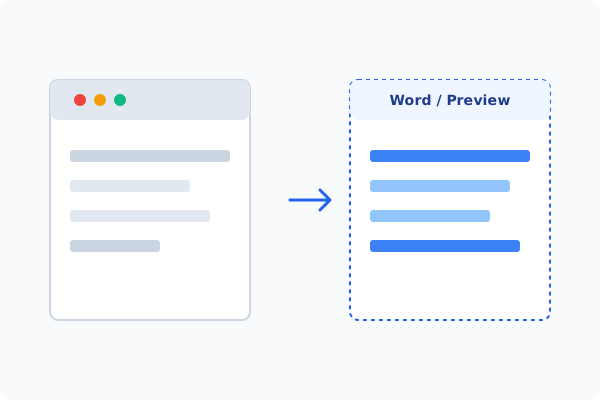
Method 2: How to Process Edit PDF on Windows 100% Offline via PDF Agile
If built-in tools are too manual, convert file layouts, or pose a privacy risk, running a lightweight desktop PDF editor like PDF Agile is the fastest and safest solution on Windows. Follow these steps:
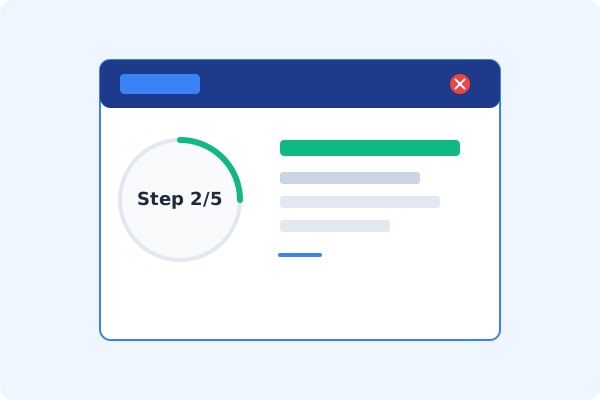
Install & Launch PDF Agile on Windows
Download PDF Agile for Windows 11 or 10 and open your PDF. All processing happens locally on your PC.
Open the Edit Tab
Click the Edit tab on the Ribbon menu.
Click Edit Content
Select Edit Content to make the document's text and images editable.
Edit and Reorganize
Retype text with font matching, replace images, or use the Page tab to insert, crop, or split pages.
Save with Ctrl+S
Press Ctrl+S to save the file directly to your Windows drive.
Why Desktop Offline PDF Processing is Superior
For individuals and corporations, desktop-grade utilities protect your data boundaries while maintaining peak rendering speed:
Works natively on Windows 11 and Windows 10
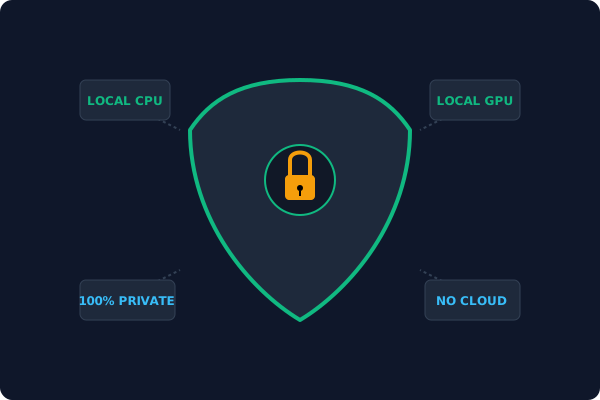
Edits run locally
no cloud upload required
Lightweight install with fast rendering of large files
Offline Local Software vs. Online & Subscription Editors
Before deciding how to handle your document, look at how different solutions stack up against your requirements:
| Features / Risks | Online PDF Editors | Adobe Acrobat | PDF Agile (Offline) |
|---|---|---|---|
| Data Privacy & Safety | ❌ Unsafe (File Uploaded to Cloud) | ⚠️ Average (Cloud Sync Enabled) | ✔ 100% Safe (Processed Locally) |
| File Size & Page Limits | ❌ Strict Limits (Often <20MB) | ✔ Unlimited Pages | ✔ Unlimited Pages (No Cap) |
| Subscription Fees | ⚠️ Free with Ads or Monthly Cap | ❌ Very Expensive ($20+/Month) | ✔ Affordable Lifetime Buyout |
| Offline Performance | ❌ Zero (Requires Internet) | ✔ Slow Setup & Cloud Checks | ✔ Instant Local CPU/GPU Loading |
Contextual PDF Guidelines
Managing complete workflows? If you'd rather avoid Adobe entirely, see how to edit PDF text offline, or learn how to convert PDF to Word, Excel and PPT offline for editing in familiar Office apps.
Frequently Asked Questions & Workarounds
Does Windows 11 have a built-in PDF editor?
Windows 11 includes Edge for viewing and basic markup, but no built-in editor for changing existing PDF text. A desktop app like PDF Agile fills that gap.
How do I edit a PDF on Windows without Adobe?
Use Microsoft Edge or Word for light edits, or install an affordable desktop editor like PDF Agile for full editing without Adobe's subscription.
Can I edit a PDF on Windows offline?
Yes. Edge, Word, and PDF Agile all work fully offline, keeping your files on your PC.
Tired of Expensive Adobe Subscriptions?
Try PDF Agile. Get professional, desktop-grade PDF tools with a lifetime buyout license. 100% offline and secure.