How to Crop and Split PDF Pages Offline
Crop, split, and resize PDF pages offline on desktop. Reorganize documents securely without uploading — PDF Agile.
Standardizing page sizes or extracting specific sections from large PDFs is essential for professional document management. If you are handling large corporate files, utilizing an offline desktop editor is much faster and more secure than relying on unpredictable online web pages. This guide reviews free OS printing workarounds and details how to crop and split PDF pages offline using the dedicated Page tab in PDF Agile.
Free General Methods to Resolve This Task
Cropping margins or splitting a large PDF into smaller sections is a routine document-management task, but the right approach depends on whether you need a quick one-off result or a clean, permanent edit. Free operating-system tools can handle simple cases, yet each comes with limits around scale, security, and whether the change is truly permanent.
Method 1: Windows & macOS Built-in Print-to-PDF Workarounds
If you don't own a professional desktop editor, your operating system's virtual PDF printer and built-in viewers can split or crop pages for free:
- Split Pages via Virtual Printer (Free): Open your PDF in Microsoft Edge, Google Chrome, or macOS Preview, then press Ctrl+P (or Cmd+P). Set the destination to Save as PDF or Microsoft Print to PDF, and under the Pages option enter a custom range such as '1-5' or '10, 12, 15'. Click Save to write just those pages into a new, smaller PDF. This is reliable for extracting a contiguous section, but you must repeat it once per output file.
- Crop Pages via macOS Preview (Mac-only): Preview includes a built-in crop tool. Drag the rectangular marquee around the area you want to keep, then press Cmd+K and save. Be aware this only hides the margins by adjusting the visible box — the cropped-out content still exists in the file and can be recovered by anyone who resets the crop.
- Reorder & Delete Pages via Preview Thumbnails (Mac): For lightweight splitting, open the sidebar thumbnails (View > Thumbnails), Cmd-click to select the pages you don't want, press Delete, and save the result as a new file. On Windows there is no native equivalent, so you must rely on the print-range method above.
The shared limitation is that browser/Preview crops are non-permanent and splitting requires tedious one-file-at-a-time printing with no batch control. For a non-destructive yet permanent crop, and for splitting one document into many files by range, count, or bookmarks in a single pass, the dedicated Page tools in PDF Agile are far faster and safer.
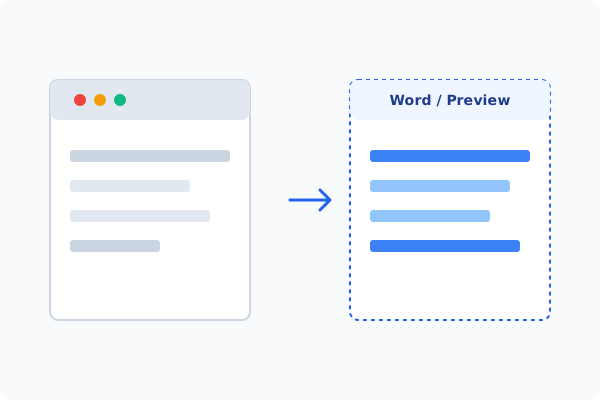
Method 2: How to Process Crop & Split Pages 100% Offline via PDF Agile
If built-in tools are too manual, convert file layouts, or pose a privacy risk, running a lightweight desktop PDF editor like PDF Agile is the fastest and safest solution on Windows. Follow these steps:
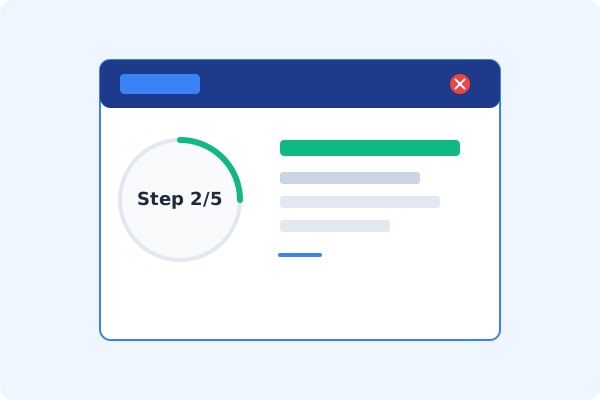
Open PDF Agile and Load Document
Launch PDF Agile and load your PDF. There is no file size limit for local processing.
Go to the Page Tab
Click the Page tab on the Ribbon menu to view the layout and organization features.
Choose Crop or Split
Click Crop to adjust page boundaries, or Split to break the document into multiple independent files.
Set Crop Box or Split Range
For cropping, drag the margins or input exact measurements. For splitting, specify page ranges, file count, or bookmarks.
Confirm and Save Locally
Click Apply. The output files are saved instantly to your selected local folder.
Why Desktop Offline PDF Processing is Superior
For individuals and corporations, desktop-grade utilities protect your data boundaries while maintaining peak rendering speed:
Split large PDFs into single pages or custom ranges in seconds
Crop page margins with precise pixel or inch adjustments
Batch process multiple files locally with zero upload wait times
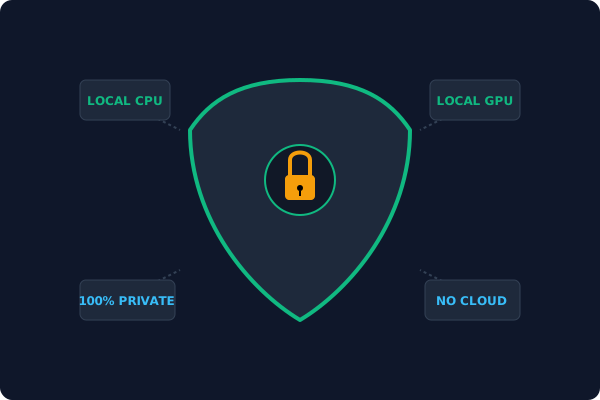
Offline Local Software vs. Online & Subscription Editors
Before deciding how to handle your document, look at how different solutions stack up against your requirements:
| Features / Risks | Online PDF Editors | Adobe Acrobat | PDF Agile (Offline) |
|---|---|---|---|
| Data Privacy & Safety | ❌ Unsafe (File Uploaded to Cloud) | ⚠️ Average (Cloud Sync Enabled) | ✔ 100% Safe (Processed Locally) |
| File Size & Page Limits | ❌ Strict Limits (Often <20MB) | ✔ Unlimited Pages | ✔ Unlimited Pages (No Cap) |
| Subscription Fees | ⚠️ Free with Ads or Monthly Cap | ❌ Very Expensive ($20+/Month) | ✔ Affordable Lifetime Buyout |
| Offline Performance | ❌ Zero (Requires Internet) | ✔ Slow Setup & Cloud Checks | ✔ Instant Local CPU/GPU Loading |
Contextual PDF Guidelines
Managing complete workflows? After splitting your document, you may want to insert a blank page into PDF offline to add chapter covers, or convert PDF to Word offline to turn your split pages into editable Office formats.
Frequently Asked Questions & Workarounds
Does splitting a PDF offline compromise quality?
No. Splitting pages offline is a non-destructive metadata operation that extracts pages exactly as they are without re-compressing images.
Can I standardize different page sizes?
Yes. In the Page tab, click Page Size and select a standard format (like A4 or Letter) to normalize all sheets.
Is there a file size limit for splitting offline?
No. While online sites block files larger than 10MB or 20MB, a desktop editor like PDF Agile can process gigabyte-sized PDFs locally.
Tired of Expensive Adobe Subscriptions?
Try PDF Agile. Get professional, desktop-grade PDF tools with a lifetime buyout license. 100% offline and secure.